Drop in Google Analytics traffic: diagnosis and solutions
I’ll be honest with you: there are few things as unsettling in the daily life of a website owner as opening Google Analytics one morning and seeing the traffic curve plummet. That moment makes time stand still, raises a flood of anxious questions, and often leads to hasty reactions. But here’s what experience has taught me: a drop in Google Analytics isn’t always what it seems. Before looking for an SEO cause, there’s a fundamental question to ask: is this drop real, or is it a measurement artifact? This distinction changes everything. And that’s where this article begins, to guide you step by step through the diagnosis and solutions.
- A drop observed in Google Analytics isn't necessarily an actual drop in traffic: a tracking issue is often the first thing to rule out.
- The migration from Universal Analytics to GA4 has caused countless data gaps, resulting in apparent drops in traffic without any actual decline.
- Seasonality, holidays, and industry-specific trends account for a large portion of the fluctuations observed in Analytics.
- Segmenting by acquisition channel is a key step in the analysis: an overall decline almost always masks a decline in a specific source.
- Google Search Console is the essential tool for confirming or ruling out a drop in organic traffic reported in Analytics.
- A six-step diagnostic protocol allows for a systematic approach to addressing all possible causes without getting sidetracked.
- With automatic alerts in GA4 and a monthly tracking dashboard, you’ll never be caught off guard again.
I’ll be honest with you: there are few things as unsettling in the daily life of a website owner as opening Google Analytics one morning and seeing the traffic graph plummet. That moment makes time stand still, raises a flood of anxious questions, and often leads to hasty reactions that, at best, do nothing to help, and at worst, make the situation worse.
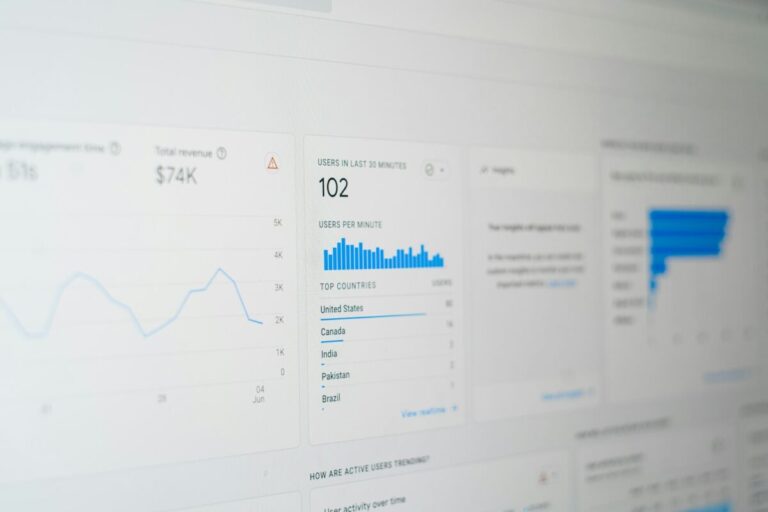
But here’s what experience has taught me after years of analyzing data for dozens of websites: a drop in Google Analytics isn’t always what it seems. Before looking for an SEO cause, before changing your content, before calling your developer in a panic, there’s a fundamental question to ask yourself. Is this drop real, or is it a measurement artifact? This distinction changes everything. And that’s where this article begins.
First question: Is the decline real, or is it a tracking issue?
That’s the first question I always ask, and in my opinion, it’s the most important one in the entire diagnostic process. A significant number of the «traffic drops» people bring to my attention are actually just data collection issues. Actual traffic is stable, or nearly so, but Analytics is only seeing part of it. Treating a tracking issue as an SEO problem means wasting time, energy, and sometimes money on the wrong problem.
Signs that indicate a measurement issue rather than an actual decline
Here are the warning signs that should point you toward a tracking approach rather than an SEO approach. A drop that occurs exactly on the day a site goes live or is updated. A sudden, steep drop—to 100% or nearly 100%—in a specific traffic source. A drop that isn’t reflected in Google Search Console data. A sudden disappearance of an entire demographic or geographic segment from your reports. Or, a drop that appears in one Analytics property but not in another property installed on the same site.
Each of these signs should alert you to the possibility that what you are seeing is not the actual condition, but a malfunction in your measuring instrument. And like any good diagnostician, you should check the instrument before treating the patient.
If Google Analytics shows a drop in traffic, it's possible that a whether Google is to blame, requiring a specific analysis.
A drop observed in Google Analytics requires a thorough analysis to determine whether it is a actual loss of Google traffic.
Compare Google Analytics with Google Search Console to verify the signal
This is the simplest and quickest cross-check you can perform. Google Search Console tracks impressions and clicks from Google search results, regardless of your Analytics tag. If your organic traffic has actually dropped, you should see it in both tools at the same time. If the drop shows up in Analytics but Search Console displays stable data—or a slight increase—you have your answer: the problem lies in your tracking, not in your SEO.
This comparison takes five minutes. I recommend it as the first thing you should do whenever you see an unexplained drop in Analytics. In many cases, it will save you from conducting a thorough SEO analysis that is completely unnecessary.
Technical events that distort the data
Several common technical issues can suddenly disrupt data collection in Analytics. A WordPress theme update that accidentally removes the tracking snippet from certain pages. The installation of a caching plugin that interferes with the loading of the Analytics tag. A change in Google Tag Manager that disables a trigger or alters the tag’s firing conditions. A change in the SSL certificate that causes loading issues on certain pages. Or, the deployment of a new JavaScript framework that modifies the navigation structure without the tracking being adjusted accordingly.
In all these cases, actual traffic hasn't changed, but Analytics now only sees a fraction of it. Once the problem is identified, the fix is often quick and easy.
How to verify that the Analytics tag is active on all pages
The easiest tool for this check is Google Tag Assistant, a free Chrome extension available in the Chrome Web Store. Install it, browse through different pages on your site (especially those that seem to have the biggest drop in your data), and verify that the GA4 tag is firing correctly on each one. If the tag is missing or malfunctioning on certain pages, you’ve found your problem.
Another quick method: in GA4, check the real-time report while you’re browsing your site. If your visits are being tracked in real time, the tag is active. If nothing shows up, the tag isn’t working. Simple, effective, and easy for anyone to do.
If Google Analytics shows a drop in traffic, check to see if a recent redesign has caused a Drop in Google traffic following the redesign.
A drop in traffic in Google Analytics may indicate a actual loss of Google traffic, requiring an accurate diagnosis.
The pitfall of comparing non-equivalent periods
Here’s a common cause of false alarms that I encounter more often than you might think. By default, Analytics compares the current period to the previous one. But comparing this week to last week, or this month to last month, can be deeply misleading if the periods aren’t equivalent in terms of business days, timing within the year, or seasonal patterns.
Comparing May to April when May has three holidays and a long weekend, comparing December to November without accounting for the Christmas effect, or comparing a week with a Monday holiday to a typical week: these are all comparison errors that generate «declines» that aren’t really declines. Always prioritize year-over-year comparisons—that is, the same period in the previous year—for reliable analyses.
Issues related to Google Analytics itself
Once you’ve ruled out the possibility of a simple tagging error, you need to take a closer look at the configuration of your analytics tool itself. Google Analytics—especially since the transition to GA4—is a powerful but complex tool that can produce inaccurate or incomplete data if certain settings aren’t configured correctly. Here are the most common causes I’ve observed.
The Migration from GA3 to GA4: Frequent Data Discontinuities
This has by far been the most common cause of «false declines» since 2023. Universal Analytics (GA3) was officially deprecated in July 2023, and many sites rushed to migrate to GA4 without properly configuring the new property. The result is a data break: GA4 metrics are not comparable to those of Universal Analytics, because the very definition of a «session» or a «user» has changed between the two versions.
My opinion on this is clear: if you compare GA4 data to older Universal Analytics data, you’re comparing apples to oranges. GA4 counts sessions differently, and it’s perfectly normal to see discrepancies of 20 to 40 % between the two properties over identical time periods, even though actual traffic hasn’t changed at all. Before you worry, make sure you’re comparing GA4 data to other GA4 data.
An incorrectly configured view filter
In Universal Analytics, it was common to apply view filters to exclude certain types of traffic, such as internal team traffic or known bots. If any of these filters were modified, accidentally enabled, or migrated incorrectly during the transition to GA4, they may exclude a significant portion of your legitimate traffic from reports. Check your data stream settings in GA4, particularly the IP address filters, to ensure that no unwanted filters are in place.
The transition to «consent» mode and its impact on data
Since the GDPR came into effect, and more recently with Google’s new consent requirements for the use of Google Analytics, many websites have implemented a CMP (Consent Management Platform), i.e., a cookie consent banner. If this CMP is configured to load the Analytics tag only after the user has explicitly accepted it, and if your banner’s acceptance rate is low, you are collecting data on only a fraction of your actual visitors.
In France, the cookie acceptance rate ranges from 50% to 70% depending on the industry and the quality of the consent interface. This means that 30 to 50% of your traffic may be invisible in Analytics if your CMP is configured in «strict opt-in» mode. This is a reality that many website owners discover to their astonishment during their first Analytics audit. And it’s a reality that can simulate a dramatic drop in traffic if the banner was recently installed or modified.
Tag blocking by browsers and extensions
Google Analytics is one of the primary targets of ad blockers and privacy extensions. Extensions such as uBlock Origin, Privacy Badger, and Ghostery systematically block Analytics tags on the browsers of users who have installed them. The Firefox browser now includes basic tracking protection by default. And Safari, through its Intelligent Tracking Prevention (ITP) system, limits the lifespan of Analytics cookies to seven days, or even 24 hours in certain contexts.
The impact of these blockers on data collection varies depending on your audience. On a site aimed at a highly tech-savvy audience, such as a blog for developers or IT professionals, the blocking rate can exceed 30%. On a general-interest site, it tends to range between 5 and 15%. This is not a new problem, but its scale is gradually increasing with the growing adoption of these protection tools.
A configuration change in Google Tag Manager
If you manage your Analytics tag through Google Tag Manager (GTM), a configuration change in GTM can have an immediate impact on data collection. A modified trigger, a misconfigured variable, a trigger rule that’s too restrictive, or the accidental publishing of a container currently being tested: these are all situations that can disrupt your tracking without you immediately realizing it. Check the version history in GTM and see if a recent release coincides with the start date of the decline.
Changes to sessions and metrics between UA and GA4
I want to emphasize this point because it causes a great deal of confusion. In GA4, a session may not end at midnight: it continues as long as the user is active. In Universal Analytics, every change in traffic source would start a new session. In GA4, this is no longer the case. These differences in definition mean that GA4 generally counts fewer sessions than Universal Analytics for the same traffic, because certain sessions that were counted twice in UA are now counted only once in GA4. This isn’t a decline; it’s a methodological correction.
Seasonal and contextual causes
Let’s now turn to a category of causes I call «false structural declines»: these fluctuations in traffic are actually perfectly normal and predictable, but they worry website owners who haven’t anticipated them. Seasonality is a massive and underestimated factor in web traffic analysis.
Seasonality: normal fluctuations by sector
Every industry has its own traffic cycles, driven by the search behaviors of its target audiences. A gardening website will see its traffic skyrocket in the spring and plummet in the winter. A tax advisory website will experience peaks in March and April, and lows in the summer. An e-commerce site will peak in November and December and plummet in January. A recipe blog will fluctuate with the culinary seasons. These variations are normal, predictable, and require no corrective action.
If you haven’t yet documented the seasonality specific to your industry, I strongly encourage you to do so. Export two years of data from Analytics, plot the monthly trend, and you’ll see recurring patterns emerge. These patterns will serve as your benchmark for distinguishing a normal decline from a genuine anomaly.
Long weekends, school breaks, and holidays
Depending on the nature of your website and your audience, these calendar events can have a significant impact on your traffic. A B2B site, which targets professionals browsing from their workplace, will typically see its traffic drop during summer school breaks, the long weekends in May, and the week between Christmas and New Year’s. Conversely, a leisure or travel site may experience traffic spikes precisely during these same periods. Understanding the calendar’s impact on your specific audience is essential for interpreting your Analytics data effectively.
Economic factors that influence search behavior
Certain external events can temporarily affect search volumes in your industry—and, consequently, your traffic. A major media event that captures the attention of internet users, an industry crisis that causes a temporary decline in interest, a technological innovation that shifts search interest toward a new topic, or even a busy election season that absorbs a disproportionate share of news traffic. These temporary phenomena are fleeting and generally resolve themselves.
Year-over-year vs. week-over-week comparison
I want to emphasize this methodological point because it is fundamental. The default comparison period in Analytics (the previous period) is the most misleading one possible for trend analysis. It does not account for seasonality, calendar variations, or composition effects. The most reliable comparison is almost always the year-over-year comparison—that is, the same period in the previous year. It neutralizes seasonality and gives you a much more accurate picture of the actual trend in your traffic.
How to distinguish a long-term trend from a normal fluctuation
A normal fluctuation is a variation that falls within your site’s historical patterns. A long-term trend is a shift that persists over several months and deviates significantly from those patterns. To distinguish between the two, I recommend plotting a 4-week moving average of your traffic: if the smoothed curve gradually declines over several months, you likely have a long-term trend. If the smoothed curve is stable and it is the weekly peaks and troughs that vary, you are seeing normal fluctuations.
Causes related to a decline in organic traffic
You’ve ruled out tracking issues, seasonality, and issues within Analytics itself. If the decline persists in your data and is confirmed in Google Search Console, it’s time to look into SEO-related causes. Here are the most common ones, listed in order of decreasing likelihood.
A Google algorithm update
This is the most common cause of a sudden and significant drop in organic traffic. Google rolls out hundreds of updates each year, including several major «Core Updates» that can drastically reshuffle search results for numerous queries simultaneously. Since 2022, the «Helpful Content» and «Spam Updates» have particularly impacted sites whose content was perceived as superficial, automated, or optimized for search engines rather than for readers.
To check whether an update corresponds to the date of your traffic drop, visit the Google Search Status Dashboard (search.google.com/search-status/dashboard) and the Search Engine Roundtable website, which lists all known algorithmic changes, whether official or not. If your drop coincides with an update rollout, you’ve found the cause.
A manual or algorithmic penalty
Manual penalties are imposed by Google employees after they verify that your site violates their guidelines. They are immediately visible in the «Manual Actions» section of Google Search Console. If you don’t see anything there, you don’t have a manual penalty. Algorithmic penalties, on the other hand, are automatic and silent: they result from the algorithm detecting practices that violate guidelines (artificial backlinking, duplicate content, cloaking), and do not generate any explicit notification in Search Console.
Pages de-indexed or blocked by mistake
An accidentally added «noindex» tag, an incorrectly modified robots.txt file, or a privacy setting enabled in WordPress: these technical errors can cause your site to be partially or completely deindexed, with immediate and drastic effects on organic traffic. Check the «Coverage» report in Search Console to identify any pages that may have been recently excluded from the index.
The loss of market share to stronger competitors
Sometimes, your site hasn’t done anything wrong. It’s simply that one or more competitors have published better content than yours, earned additional backlinks, or improved their technical performance. In this case, you’re not falling behind because you’ve regressed: you’re falling behind because someone else has improved. This distinction is important because it points toward a strategy of strengthening your competitive position rather than fixing mistakes.
The loss of important backlinks
A referring site that has shut down, an article that linked to you and has been removed, or a partner that has redesigned its site without retaining its old links: these events can weaken your backlink profile and result in a drop in rankings for the most competitive search queries. Tools like Ahrefs or Semrush allow you to monitor your link profile and identify recently lost backlinks.
Outdated content that is gradually losing its relevance
Editorial aging is the insidious phenomenon whereby content that was excellent when first published gradually becomes less relevant, less comprehensive, or less up-to-date than new content published by your competitors. Google favors fresh, up-to-date content for many search queries, particularly those that evolve rapidly over time. An article published in 2020 that hasn’t been updated may gradually lose its rankings to more recent articles, even if it was originally very well-ranked.
| Metric in Analytics | Probable SEO cause | Where to check in Search Console |
|---|---|---|
| A sharp drop in all organic traffic in a single day | Algorithm update or manual penalty | Manual Actions / Performance (Date of Decline) |
| Near-total disappearance of organic traffic | Deindexing (noindex, robots.txt, penalty) | Coverage / URL Inspection |
| A gradual decline over several weeks or months | Competitive pressure or outdated content | Performance > Period Comparison > Pages |
| Decline concentrated on certain pages or categories | Content modified, removed, or demoted by Google | Performance > Pages > Filter by URL |
| Decrease in trademark-related searches only | Decline in brand awareness or brand competition | Performance > Queries > Filter by Brand |
Causes related to a decline in non-organic traffic
It would be simplistic to analyze only organic traffic when Analytics shows an overall decline. A drop in total traffic could very well result from a decline in a non-organic channel, without your SEO being at fault. Segmenting by acquisition channel is a step that too few people take during a diagnostic analysis.
Decline in direct traffic: possible explanations
A drop in direct traffic may indicate a decline in brand awareness, a decrease in repeat visits from loyal customers, or—more often than you might think—an issue with traffic classification in Analytics. In GA4, some traffic that should be classified as «direct» may be reattributed to other channels depending on your attribution model configuration. A drop in direct traffic therefore always warrants a review of your attribution settings before drawing conclusions about brand awareness.
Decline in social media traffic
Social media algorithms are constantly changing and unpredictable. A change in LinkedIn’s algorithm, a reduction in organic reach on Facebook, or a shift in your posting strategy can cause a significant drop in social traffic to your site. This type of drop is usually specific to a particular platform and can be easily confirmed by segmenting social traffic by platform in Analytics. The solution lies in editorial or advertising efforts, not SEO.
Ending or pausing a paid campaign
This is such an obvious cause that it sometimes goes unnoticed. If a Google Ads, Meta Ads, or LinkedIn Ads campaign has been paused or ended, paid traffic disappears instantly from Analytics reports. If this traffic accounted for a significant portion of your total traffic, the overall drop may seem alarming, even though it’s perfectly logical and expected. Always check your active campaigns before diving into a complex analysis.
Loss of a key partnership or referring site
A partner site that used to send you regular traffic via a featured link may have removed that link, redesigned its site, or simply shut down. If this site was a significant source of referral traffic, its disappearance will be reflected in your Analytics data. Check the «Acquisition > Traffic > Referrals» report in GA4 to identify any referring sites that have stopped sending you traffic.
Decline in email traffic
If you publish a regular newsletter and have reduced the frequency of your emails, changed your mailing list, or seen a drop in your open rate, the traffic generated by your email campaigns will automatically decrease. You can identify this type of decline in Analytics by filtering traffic by the «email» source or by UTM campaigns if you tag your email links.
How to Interpret a Drop in Google Analytics Correctly
Beyond identifying the causes, there is a fundamental skill to develop: knowing how to interpret Analytics correctly. It’s a skill that can be learned, and one that radically improves the quality of your analysis. I’ll walk you through the essential steps for extracting reliable, actionable insights from a drop in traffic.
Choosing the right comparison period
I’m bringing this up again because it’s really important. In GA4, when you select an analysis period, click «Compare» and choose «Same period last year» instead of «Previous period.» This comparison neutralizes seasonality and gives you a much more accurate picture of the actual trend. For short-term analyses, opt for a week-over-week comparison with the same week of the previous year for sites with strong weekly seasonality.
Segment by acquisition channel to pinpoint the source of the problem
In GA4, go to Reports > Acquisition > Traffic Acquisition. You’ll see your traffic broken down by channel: organic, direct, social, paid, referral, and email. Compare this data across your two time periods (before and after the decline) and identify which channel has declined the most. This is often revealing: a decline that seemed widespread is actually concentrated in a single channel, which completely changes the corrective approach.
Identify the pages most affected by the decline
In GA4, go to Reports > Engagement > Pages and Screens. Enable period comparison and sort by session or view variation. The pages in red are the ones that have declined the most. This list is your top priority for diagnosis: for each of these pages, check Search Console to see how impressions and rankings have changed for related queries. That’s where you’ll find the specific causes of the overall decline.
Analyze demographic and geographic data
A geographic anomaly can sometimes reveal an unexpected cause. If your traffic has dropped only in a specific country or region, this may indicate a server geolocation issue, a change in hreflang settings, or a Google algorithm update rolled out in that geographic area before being expanded to other regions. Check the «Demographics > Region» report in GA4 to detect this type of anomaly.
Use annotations to link the decline to a specific event
In GA4, the annotation feature allows you to place markers on your data timeline to highlight important events: campaign launches, website updates, plugin deployments, CMP changes, and Google updates. These annotations do not have retroactive effect, but they are invaluable for future analysis. I recommend systematically noting all events that could influence traffic as soon as they occur. It’s a simple practice that saves a considerable amount of time during future diagnostics.
The difference between sessions, users, and page views: Which metric should you track?
This is a more nuanced question than it seems. In GA4, «sessions» measure the number of visits, «users» measure the number of unique visitors, and «views» (e.g., page views) measure the number of pages viewed. These metrics can change in different ways and tell you different things about your situation. A decline in the number of users coupled with an increase in the number of page views per session, for example, may indicate that you’re attracting fewer visitors but that those you attract are more engaged. This is a radically different situation from a uniform decline across all metrics.
The comprehensive diagnostic protocol: in what order should the causes be checked?
This is the core of this article. Everything we’ve covered so far leads to this six-step protocol, which I systematically follow when analyzing an unexplained drop in traffic in Analytics. Follow it in order: each step eliminates a category of potential causes and narrows down the diagnosis to the actual cause.
Step 1: Verify the integrity of the tracking
Start by verifying that your GA4 tag is working properly on all pages of the site using Google Tag Assistant. Make sure the consent mode is configured correctly and isn’t blocking traffic unnecessarily. Check the publication history in GTM if you’re using it. And make sure no IP or domain exclusion filters have been inadvertently activated. If you find an issue at this stage, fix it before proceeding: any analysis you perform afterward will be skewed if the data is incomplete.
Step 2: Remove seasonal variations
Compare your current traffic to the same period last year. If the decline disappears in this comparison, it’s due to seasonality: no corrective action is needed, just better planning for next time. If the decline persists in the year-over-year comparison, move on to the next step.
Step 3: Segment by channel and identify the primary source
Break down the decline by acquisition channel in GA4. Identify which channel contributed most to the overall decline. If the decline is concentrated in paid or social channels, the diagnosis is clear, and the solution lies in your acquisition strategy, not in your SEO. If the decline is primarily organic, move on to the next step.
Step 4: Cross-reference with Search Console for organic traffic drops
Open Search Console and compare organic clicks over the same time period. If the decline is confirmed in Search Console, you have a genuine organic drop to investigate. Note the exact date the decline began in Search Console: this date will serve as your guide for the rest of the analysis.
Step 5: Identify the most affected pages and keywords
In Search Console, enable the period comparison feature and sort the pages by descending click difference. For the 10 to 20 most affected pages, also review the associated search queries and how their rankings have changed. This will give you a precise picture of the impact: which pages, for which keywords, and the extent of the ranking loss. It is this level of detail that will guide your corrections.
Step 6: Link the date of the decline to an event
Once you have the exact date of the drop, cross-reference the following events chronologically: Google updates (Search Status Dashboard), technical changes to your site (deployment log), major editorial changes (new content, deletions, content overhauls), and changes to Analytics or GTM configurations. The temporal correlation is often sufficient to identify the root cause. If the drop coincides with a Core Update, the cause is algorithmic. If it coincides with a deployment, the cause is technical. If it coincides with nothing identifiable, dig deeper into competitive analysis and the backlink profile.
Tools that complement Google Analytics to refine your analysis
Google Analytics is the core tool for your analysis, but it can’t tell you everything on its own. Here are the additional tools I always use to refine the analysis and get a complete picture of the situation.
Google Search Console: The Essential Tool for Organic Search
I’ve mentioned this several times before, but I want to emphasize it: Google Search Console and Google Analytics are two complementary tools, and using them together is essential for any serious analysis. Search Console tells you what Google sees on your site: impressions, clicks, rankings, indexed pages, and crawl errors. Analytics tells you what your visitors are doing on your site. These two perspectives combined provide a complete picture that neither can provide on its own.
Google Tag Assistant and GA Debugger: Validating Tracking
Google Tag Assistant (available as a Chrome extension) lets you verify in real time that your Google tags are firing correctly on every page. The GA Debugger extension, which is more technical, displays Analytics calls page by page in the browser console, allowing you to verify the parameters sent with each hit. These two tools are essential for diagnosing tracking issues and confirming that a fix has successfully resolved the problem.
Screaming Frog: Auditing the Technical Health of a Website
Screaming Frog crawls your site exactly like Googlebot and provides you with a comprehensive inventory of pages, their HTTP statuses, title and meta tags, redirects, and errors. It’s the go-to tool for a quick technical audit, and it allows you to verify that the Analytics tag is present on all crawled pages by exporting the source code and filtering for the presence of the GA4 snippet.
Semrush or Ahrefs: Analyzing Rankings and Backlinks
For confirmed organic traffic drops, Semrush and Ahrefs let you analyze how your pages’ rankings have changed for their target keywords and check whether any important backlinks have been lost recently. This information, combined with Search Console data, gives you a comprehensive view of the SEO causes behind an organic drop: algorithm updates, competitive pressure, or loss of authority.
PageSpeed Insights: Check whether a technical issue is causing the decline
If your drop in traffic coincides with a website update, a migration, or the installation of a new theme or plugin, test your main pages on PageSpeed Insights. A significant decline in Core Web Vitals (LCP, CLS, INP) on mobile may explain a drop in search rankings and consequently a decline in organic traffic, especially if your site previously scored well on these metrics.
What can be done once the cause has been identified?
The diagnosis is in. You now know why your traffic has dropped in Analytics. Let’s move on to the corrective actions, tailored to each identified cause.
If it's a tracking issue: correct and reconcile the data
Fix the issue at its source: reinstall the tag if necessary, reconfigure the triggers in GTM, adjust your CMP’s consent settings, or remove any unwanted exclusion filters. Once the fix is in place, check the GA4 real-time report to ensure data is being reported correctly. Note that it will not be possible to recover historical data lost during the period of malfunction: the break in your trends will be permanent, which is another reason to detect these issues as early as possible.
If it's due to seasonality: put it into context and plan ahead
No corrective action is needed, but you should take preventive measures: document your site’s seasonal patterns in a reference dashboard, and set your Analytics comparisons to «year-over-year» by default. The next time seasonality strikes, you’ll be able to anticipate it instead of being caught off guard.
If it's an SEO issue: action plan based on the type of problem
The SEO action plan depends entirely on the identified issue. An algorithm update requires a thorough editorial review. A manual penalty requires a reconsideration request after the issue has been resolved. An indexing problem requires immediate technical correction. Competitive pressure requires a strategy to strengthen content and the backlink profile. Each cause has its own specific remedy, and treating them with the same generic approach is counterproductive.
If it is a non-organic source: adjust the acquisition strategy
Whether the decline is due to a completed paid campaign, a drop in social traffic, or the loss of a referring site, the solution lies in your multichannel acquisition strategy. Diversify your traffic sources to reduce your reliance on a single channel, and build an organic content strategy that generates sustainable traffic, less dependent on advertising spend or social media algorithms.
Set up automatic alerts in GA4
GA4 allows you to set up custom alerts that notify you via email when a metric exceeds a defined threshold. Set up an alert for a drop in sessions of more than 20% compared to the previous week, and another for a drop in organic clicks of more than 30%. These alerts will allow you to detect anomalies within hours of their occurrence, rather than days or weeks later.
How to avoid being caught off guard next time
A successful diagnosis is a good thing. But a monitoring system that detects problems before they become critical is even better. Here are the best practices I recommend so you never have to discover a drop in traffic by chance again.
Set up custom alerts in Google Analytics
In GA4, custom alerts are accessible via the «Insights» feature (the lightbulb icon in the top-right corner of the interface). You can create alerts for any metric with the thresholds of your choice. At a minimum, set up: an alert for a drop in weekly sessions exceeding 25% over 3 weeks, an alert for a drop in conversion rate exceeding 20% over 3 weeks, and an alert for a sudden disappearance of a major traffic source. These alerts will send you an email as soon as the threshold is crossed.
Set up a monthly monitoring dashboard
A simplified monthly dashboard that consolidates your key traffic metrics on a single page is a valuable management tool. It should include total traffic trends by channel (with year-over-year comparisons), organic traffic and average rankings for strategic pages, the overall conversion rate, and the number of pages indexed in Search Console. This dashboard, updated monthly, gives you a clear picture of your site’s underlying trends and allows you to quickly detect any abnormal deviations.
Mark important events
Get into the habit of adding a note in GA4 whenever an event occurs that might affect your traffic: launching a new version of the site, starting or stopping an ad campaign, deploying a new plugin, changing your CMP, publishing a major article, or securing an important backlink. These annotations serve as your site’s institutional memory and make future diagnostics significantly easier.
Establish a weekly monitoring routine
I personally spend 15 to 20 minutes every Monday morning doing a quick review of the past week’s traffic data. This review focuses on three questions: Is this week’s traffic in line with the same week last year? Is there an anomaly on a specific channel? Are there any new errors in Search Console? This minimal routine, performed regularly, allows us to detect issues within 48 hours and address them before they escalate.
Combining Analytics and Search Console in Performance Reviews
These two tools should never be analyzed separately. During each monthly review, examine them side by side: Analytics for an overview of traffic and user behavior, and Search Console for insights into organic and technical aspects. Discrepancies between the two are often the most valuable signals, whether they indicate a tracking issue, a shift in organic rankings, or a change in traffic distribution across channels.
When a persistent decline warrants a professional audit
There are situations where the six steps of the protocol I’ve described are enough to identify and resolve the issue. And there are situations where, despite all these checks, the decline persists, and the cause remains unclear. Here’s how to recognize these situations, and what professional guidance can offer.
Signs that the problem goes beyond self-diagnosis
You’ve checked your tracking, accounted for seasonality, segmented by channel, cross-referenced with Search Console, identified the affected pages, and nothing clearly explains the drop. Or you’ve identified the cause, but the fixes you’ve implemented haven’t produced any results after several weeks. Or perhaps the drop exceeds 50% Q3-Q4 in organic traffic, and it affects the entire site uniformly without you being able to attribute it to a specific cause. In these cases, the expertise of an Analytics and SEO consultant can make a decisive difference.
What a professional analytical and SEO audit offers
A professional audit combines an in-depth technical analysis of the Analytics configuration (verification of the tagging plan, data collection audit, and validation of consent methods), a comprehensive SEO analysis (indexing audit, competitive analysis, rank tracking, and backlink audit), and a cross-analysis of all this data to identify root causes that standard tools cannot detect at a superficial level. The resulting report is an actionable, prioritized, and well-documented document that provides you with a clear roadmap.
How to choose the right profile based on the nature of the problem
If your issue seems to be primarily related to Analytics configuration or tracking (CMP, GA4, GTM), look for a consultant who specializes in analytics and data. If the issue seems to be primarily SEO-related (loss of organic rankings, deindexing, algorithm updates), look for a technical SEO consultant. If you can’t tell the difference between the two, look for a versatile professional who is proficient in both areas, as in practice, Analytics and SEO issues are often intertwined.
I will provide you with a comprehensive analysis of your Analytics setup and organic data, along with a detailed assessment and a structured action plan tailored to your specific situation.
Things to remember before closing this article
A drop in Google Analytics is rarely what it seems at first glance. Before you dive into time-consuming and energy-intensive SEO fixes, make sure the drop is real, that it isn’t seasonal, and that it isn’t a symptom of a tracking issue that five minutes of checking would have been enough to detect.
If the decline is real, break it down by channel, cross-reference it with Search Console, identify the affected pages, and look for a temporal correlation with an identifiable event. This six-step process, when applied methodically, will allow you to address the right problem with the right solution, in the right order. And that is precisely the difference between an effective diagnosis and a week of work wasted looking in the wrong direction.
Frequently Asked Questions About the Drop in Google Analytics Traffic
How can I tell if my drop in traffic is real or just a tracking issue?
The first crucial step is to verify the integrity of your tracking. Configuration issues, incorrectly applied filters, or migration errors (particularly when migrating to GA4) can skew your data. Compare the numbers with other tools (Google Search Console for organic traffic), and make sure your tracking code is properly implemented on all pages. A sudden and drastic drop for no apparent reason is often a sign of a technical issue rather than a real loss of user interest.
What are the first steps to take when traffic drops?
Don’t panic! Start by checking the time period you’re analyzing and comparing it to similar periods (the previous week, month, or year). Next, segment your traffic by acquisition channel to identify the source of the problem (SEO, social, paid, direct). Finally, use Google Search Console to validate organic data and detect any indexing issues or penalties. These steps will help you quickly pinpoint the cause of the drop.
Could seasonal factors explain a drop in traffic?
Yes, absolutely. Seasonality is a very common cause of traffic fluctuations, one that is often overlooked. Many industries experience peaks and troughs in activity depending on the time of year (school breaks, holidays, specific events). Analyze your data over several years to identify seasonal trends and determine whether the observed decline is part of a recurring pattern. Holidays and industry-specific behaviors can also influence your statistics.
How can you identify a specific drop in organic traffic?
To pinpoint an organic traffic drop, focus on the «Organic Search» channel in Google Analytics. Then, use Google Search Console (GSC) for a more detailed analysis. In GSC, review search performance to identify queries, pages, or countries that have lost impressions or clicks. A drop in traffic for specific keywords or key pages may indicate an issue with ranking, content, or indexing. Correlate this data with Google’s algorithm updates if possible.
Personalized, no-obligation analysis, response within 24/48 hours with 3-5 concrete quick wins.
150 entrepreneurs have already put their trust in us
🔒 Your data is never shared with third parties
